Integrations
Integrations send notifications about inbox items to the tools your team uses. You manage them under Monitoring > Integrations.
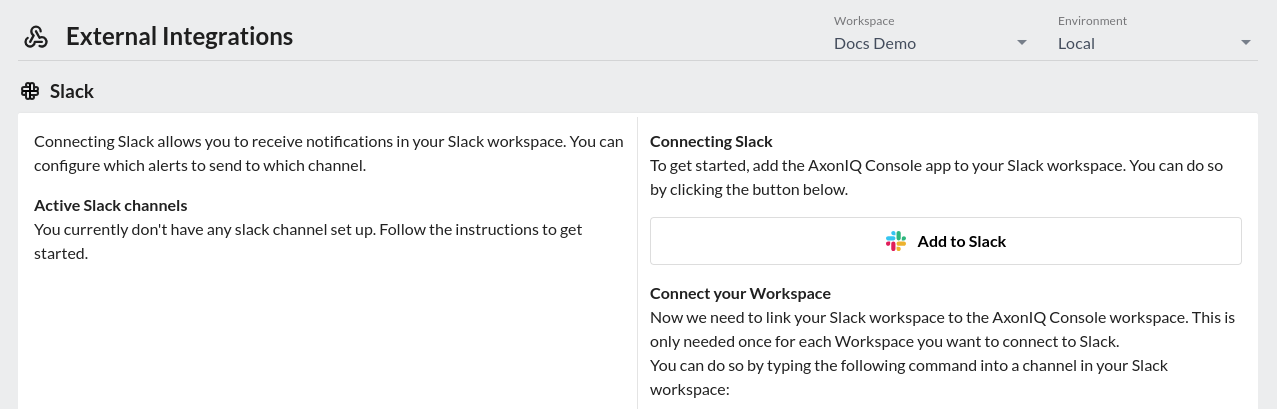
|
Notifications about alerts are only sent on paid plans. On other plans you can configure integrations, but they stay silent until you upgrade. Adding, changing and removing integrations requires the Admin or Owner role. |
Choosing what an integration receives
Every integration except the Workspace Admins Email has the same two settings:
- Severity
-
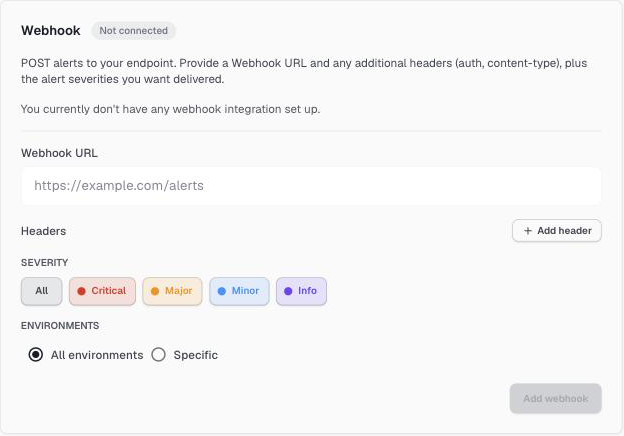
Which priorities to notify about: Critical, Major, Minor, and Info. All selects all four. A typical setup sends everything to a Slack channel and only Critical to PagerDuty.
- Environments
-
All environments, including environments you create later, or a Specific selection. For example, page on-call for production only, and send the other environments to a team channel.
Release notices have the Info severity, so an integration only receives them when Info is selected.
For when notifications are sent—on trigger, on resolve, on a new trigger after recovery—see When you are notified.
Workspace admins email
Every workspace has this integration, and it cannot be removed. It emails the workspace’s owners and admins about platform matters, such as billing and credits, on every plan.
- Also send to
-
Include users with the User or Viewer role.
- Email admins for alerts too
-
Also send alert notifications to the same recipients.
Sends notifications to an email address. Add one integration per address, each with its own severities and environments.
Slack
Posts notifications to Slack channels. When an inbox item resolves, the original message is updated instead of posting a new one.
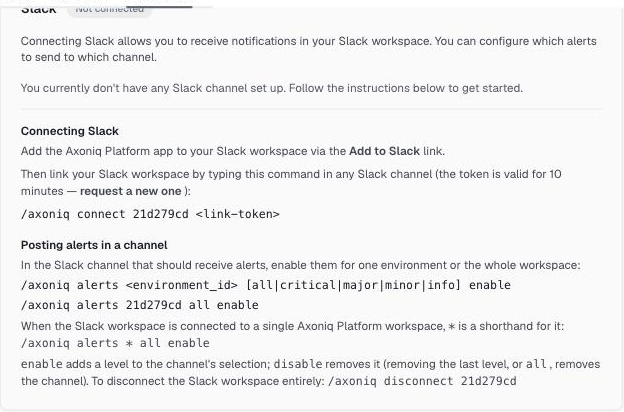
Setting up Slack takes three steps:
-
Click Add to Slack on the Slack card and install the Axoniq Platform app in your Slack workspace.
-
Connect your Slack workspace to your Axoniq Platform workspace by running the command shown on the card in any Slack channel:
/axoniq connect <workspace-id> <link-token>The card shows the command with your workspace ID and a link token filled in. The link token is valid for 10 minutes; use request a new one on the card if it expires.
-
In each Slack channel that should receive notifications, run:
/axoniq alerts <environment-id|workspace-id|*> <all|critical|major|minor|info> enablePass an environment ID to receive the notifications of one environment, or the workspace ID for all of them. When your Slack workspace is connected to a single Axoniq Platform workspace,
*is a shorthand for it. Run the command again with another severity to add it;disableremoves a severity, and removing the last one removes the channel.
The Slack card lists the channels that are set up, and you can remove them there.
To disconnect the Slack workspace entirely, run /axoniq disconnect <workspace-id>.
PagerDuty
Creates PagerDuty incidents through the PagerDuty Events API. You need an Integration key from a PagerDuty service that uses the Events API v2 integration. The Integration URL is filled in with the PagerDuty Events API endpoint; you rarely need to change it.
Each inbox item is one incident. When the item resolves, the incident resolves too. Priorities map to PagerDuty severities as follows:
| Priority | PagerDuty severity |
|---|---|
Critical |
critical |
Major |
error |
Minor |
warning |
Info |
info |
Webhook
Sends an HTTP POST with a JSON body to a URL of your choice, for example to feed your own incident tooling.
Use Add header to send headers along with the request, such as an Authorization header.
Header values are stored as secrets and are not shown again after saving.
Your endpoint must answer with a 2xx status.
Payload
{
  "state": "ACTIVE",
  "priority": "CRITICAL",
  "workspaceId": "a1b2c3d4",
  "environmentId": "0",
  "environmentName": "production",
  "inboxItemId": "6f1d2c3e-8b7a-4e5f-9a0b-1c2d3e4f5a6b",
  "ruleId": "0e9d8c7b-6a5f-4e3d-2c1b-0a9f8e7d6c5b",
  "ruleName": "Processor stalled or DLQ",
  "subjectType": "PROCESSOR",
  "groupValues": {},
  "conditions": [
    {
      "resource": "PROCESSOR_DLQ_SIZE",
      "measure": "VALUE",
      "percentile": null,
      "comparator": "GREATER_THAN",
      "comparedValueNumeric": 0,
      "value": "3",
      "triggeredValue": "1",
      "extremeValue": "3",
      "extremeValueTime": "2026-10-05T09:12:00Z",
      "triggering": true
    }
  ],
  "at": "2026-10-05T09:14:00Z"
}| Field | Meaning |
|---|---|
|
|
|
The item’s priority: |
|
Stays the same for every notification about the same inbox item. Use it to correlate a resolve with its trigger. |
|
The rule that opened the item. |
|
The kind of subject the rule watches. |
|
The values the rule splits the inbox by, for example |
|
The breaching conditions, with the measured value ( |
|
When the event happened, in ISO-8601. |
New fields may be added to the payload over time; ignore fields you do not recognize.