Monitoring
Axoniq Platform watches your Axoniq Framework applications, your Axon Server clusters and your workspace itself, and tells you when something needs attention. You decide what "needs attention" means with alert rules; the Platform checks them every minute, collects what fires in an inbox, and sends notifications to the tools your team already uses.
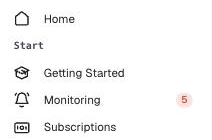
Monitoring is part of the workspace, not of a single environment. You find it under Monitoring in the sidebar, which also shows how many inbox items are open, colored by the most severe one.
How it fits together
Subject ──── a thing that can be measured: a handler, a processor, an Axon Server disk, an access token, ...
   │
Alert rule ─ what to watch: one subject type, optionally narrowed by filters
   │
Condition ── when to fire: "load time at the 90th percentile > 250 ms" (a rule can have several)
   │
Alert ────── one subject breaching the rule: pending, then triggered, then resolved
   │
Inbox item ─ the alerts of one rule in one environment, grouped together
   │
Integration where notifications about inbox items go: email, Slack, PagerDuty, webhook- Subject
-
Anything Axoniq Platform measures and can alert on. Framework subjects are handlers, aggregates, entities, event processors and applications, plus the connection limit of the environment. Axon Server subjects are the cluster, its nodes, their disks and replication groups. Workspace subjects are access tokens, product releases, and AI and message credits. See Subjects and Metrics for the full list.
- Alert rule
-
Watches one subject type, in all or some of your environments. A rule has one or more conditions and fires when any of them holds. See Alert Rules.
- Condition
-
A metric compared against a threshold, with a severity: Critical, Major, Minor, or Info. A condition can have exceptions for subjects or environments that need a different threshold, or none at all.
- Alert
-
One subject breaching a rule. An alert first becomes pending and is triggered once the problem has lasted long enough. It resolves by itself once the subject recovers. See How Alerts Are Evaluated.
- Inbox item
-
The unit you act on. An item groups the alerts of one rule in one environment, so a problem that hits fifty handlers at once is one item, not fifty. You snooze and archive items, and notifications are sent per item. See Inbox.
- Integration
-
A destination for notifications, such as an email address, a Slack channel, a PagerDuty service or a webhook. Each integration chooses which severities and environments it receives. See Integrations.
Getting started
Every workspace starts with a set of default rules that our Solution Engineers consider a good baseline. They are ordinary rules: you can change, disable, or delete any of them.
To get notified:
-
Connect your applications and Axon Server as described in Clients and Connectors. Subjects show up in monitoring as soon as the Platform receives data for them.
-
Open Monitoring > Integrations and add an integration, for example an email address or a Slack channel.
-
Adjust the default rules to your needs, or add your own on Monitoring > Alert rules.
|
Alert rules and the inbox are available on every plan. Sending notifications about alerts to an integration requires a paid plan. On other plans you can still configure integrations, but they stay silent. See Subscriptions. |
Where else alerts appear
Alerts are not only visible in the inbox:
-
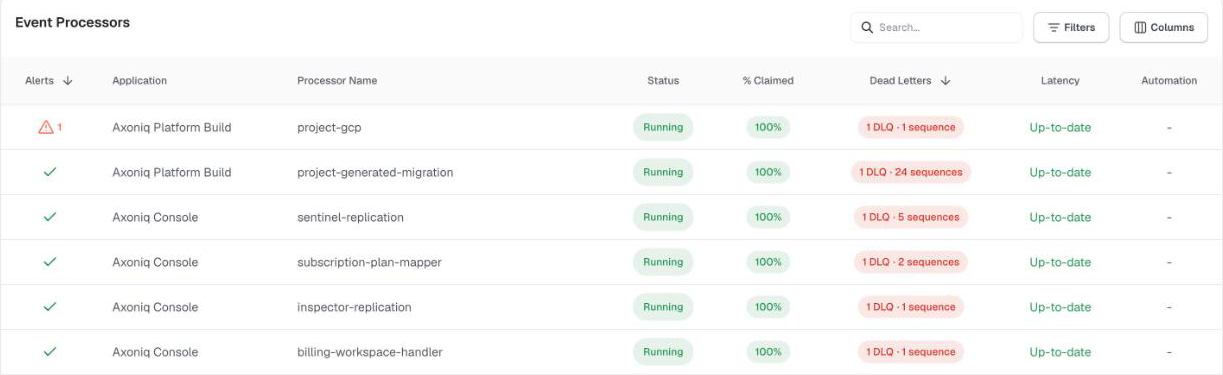
Tables of applications, processors, handlers, aggregates, entities, and Axon Server nodes have an alerts column. Rows with alerts sort first, and a filter shows only rows that have alerts.
-
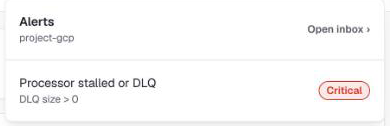
The detail page of a subject has an alerts menu in its header, listing what is firing or pending for that subject. Each entry links to the inbox item, or to the rule while the alert is still pending.
Who can do what
| Action | Owner | Admin | User | Viewer |
|---|---|---|---|---|
View the inbox, alert rules and integrations |
✔️ |
✔️ |
✔️ |
✔️ |
Create, change and delete alert rules and exceptions |
✔️ |
✔️ |
✔️ |
❌ |
Snooze, archive and delete inbox items |
✔️ |
✔️ |
✔️ |
❌ |
Add, change and remove integrations |
✔️ |
✔️ |
❌ |
❌ |
Integrations require the Admin role because they hold delivery secrets, such as PagerDuty keys and webhook headers.