Inbox
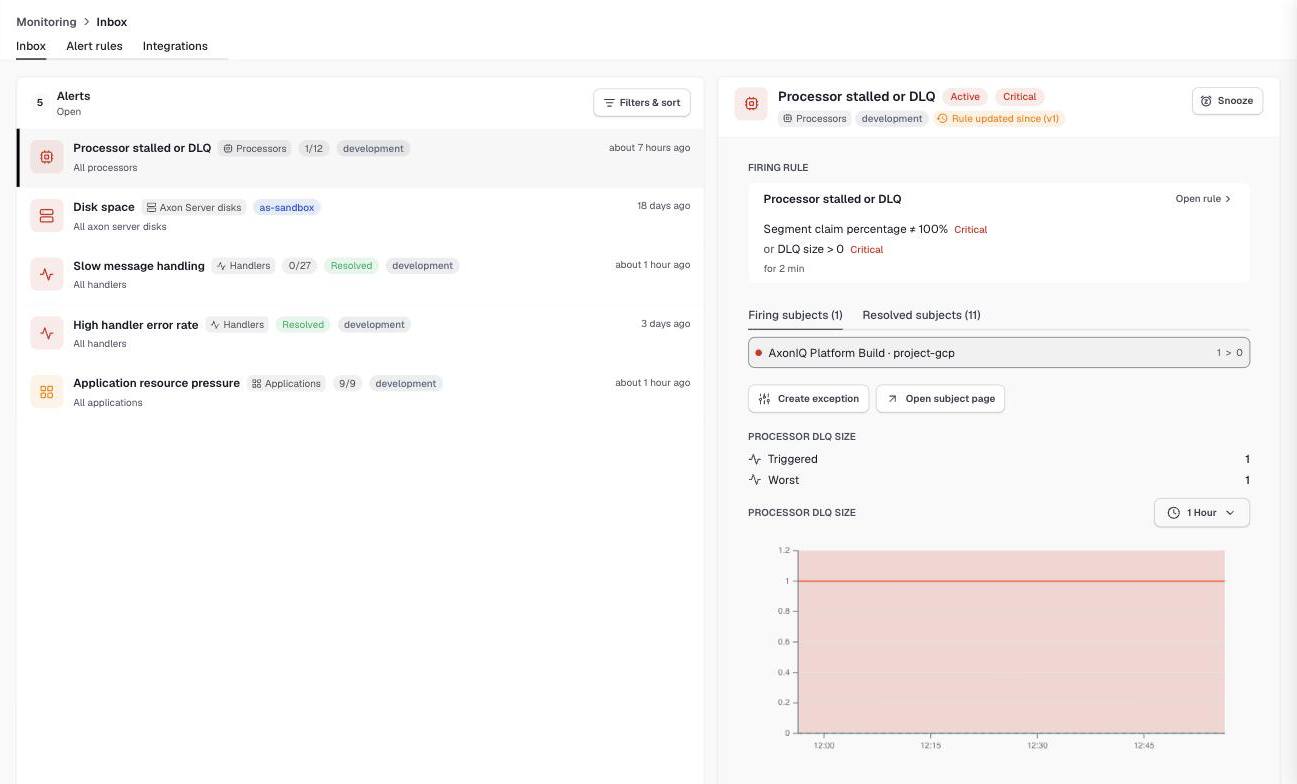
The inbox, under Monitoring > Inbox, is where you follow up on what your alert rules found. It lists inbox items on the left and the selected item on the right.
Inbox items
An inbox item collects the alerts of one rule in one environment. When a rule fires for several subjects at the same time, for example a slow database that makes all handlers slow, you get one item listing all of them instead of one notification per handler.
Each item in the list shows:
-
the rule name and the kind of subject it watches,
-
how many of its subjects are firing out of all subjects it collected, for example
1/12, -
the environment, and
-
Resolved once none of its subjects is firing any more.
The icon color is the item’s priority: the highest severity among the conditions that are breaching right now. The priority goes up and down by itself as conditions start and stop breaching.
If you want separate items per application, per processor or per any other property, set Split inbox by on the rule. See Split inbox by.
Item details
Selecting an item shows its details:
- Firing rule
-
The rule and the conditions that are breaching, with Open rule to go to the rule editor. If the rule changed after the item opened, a Rule updated since label shows the version the item started under.
- Firing subjects and Resolved subjects
-
The subjects in the item, with the measured value next to the threshold. Select a subject to see its graphs. Open subject page takes you to the subject itself, and Create exception lets you give this subject a different threshold or stop alerting on it. See Exceptions.
- Graphs
-
For each breaching condition, the value when the alert triggered, the worst value since, and a graph of the metric with its threshold.
- Event timeline
-
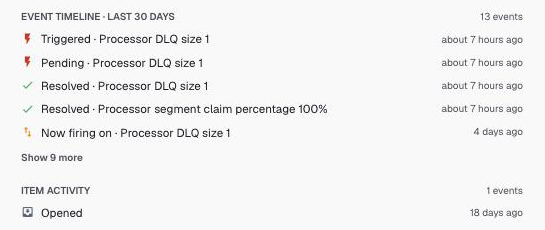
Everything that happened to the selected subject in the last 30 days: when it became pending, triggered, and resolved, and which conditions it fired on.
- Item activity
-
What happened to the item itself: when it opened, was snoozed, changed priority or was archived, and by whom.
Working with items
- Snooze
-
Hides an item that is firing for a while, for example while you work on a fix. Choose how long, in minutes, hours, days, or weeks; the default is one hour. When the snooze ends, the item returns to the open items. If everything recovered in the meantime, the item is archived instead. Snoozed items send no notifications. You can snooze again to change the end time, or un-snooze to bring the item back early.
- Archive
-
Marks an item as done. You can archive an item once it is resolved. If a subject starts firing again after you archived the item, a new item opens. Items are never archived automatically when they resolve, so a subject that recovers and fails again in quick succession stays in the same item.
- Archive all resolved
-
When more than five open items are resolved, a banner offers to archive them all at once. It respects the filters you have selected.
- Delete
-
Permanently removes an archived item. Archived items are also deleted automatically after 60 days.
Filtering and sorting
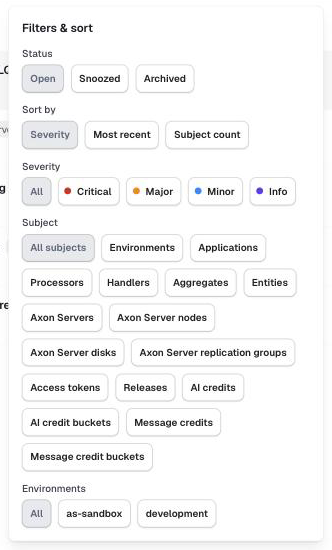
Filters & sort narrows the list down by status (open, snoozed or archived), severity, subject type and environment, and sorts it by severity, most recent activity or number of subjects. The selection is part of the page address, so you can bookmark it or share it with a colleague.
The archived items are listed at the bottom of the inbox under View archived.
Release notices
Besides alerts, the inbox shows a notice when a new version of an Axoniq product is released, with its release notes. These come from the Product releases rule; change its filters to choose which products and release types you hear about, or disable it. Marking a notice as read archives it. Notices you never mark as read are archived automatically after 90 days.