Alert Rules
An alert rule describes what to watch, when that is a problem, and how bad a problem it is. You manage rules under Monitoring > Alert rules.
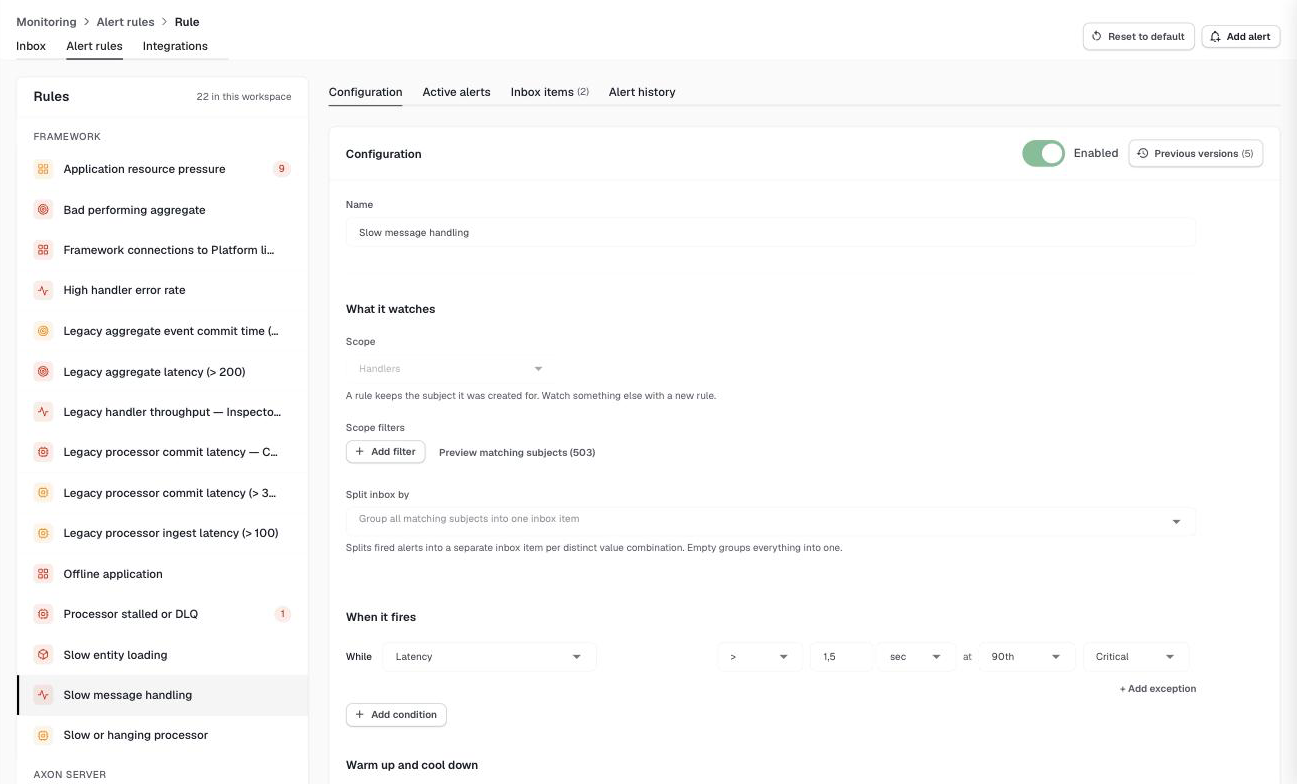
The list groups rules by the part of the Platform they watch: Framework, Axon Server, Usage & Limits and Workspace. The icon color is the rule’s highest severity, gray for a disabled rule, and the badge shows how many alerts the rule has right now, pending or triggered.
Click Add alert to create a rule, or select a rule to edit it. Every workspace starts with the default rules.
What it watches
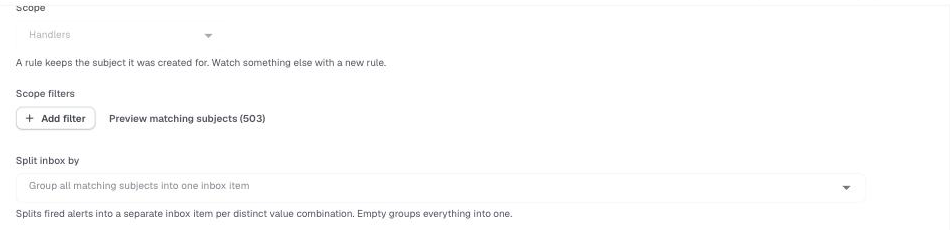
- Scope
-
The type of subject the rule watches, such as handlers, processors, or Axon Server disks. You choose it when you create the rule and cannot change it afterwards; to watch something else, create a new rule.
- Scope filters
-
Narrow the rule down to the subjects you care about, based on their properties: the application name, the processor name, the message type, and so on. A filter can match a value exactly (
equals,not equals), one of a comma-separated list (any of,none of), or a pattern with*as a wildcard (like,not like). Pattern matching ignores case. When you add several filters, a subject must match all of them.Preview matching subjects lists the subjects the rule currently covers, so you can check your filters before saving.
- Split inbox by
-
Decides how fired alerts are grouped into inbox items. Left empty, all alerts of the rule in one environment end up in a single inbox item. Choose one or more properties to get a separate item per distinct value—for example, split by application name to get one item per application. Each item is snoozed, archived, and notified about on its own.
When it fires
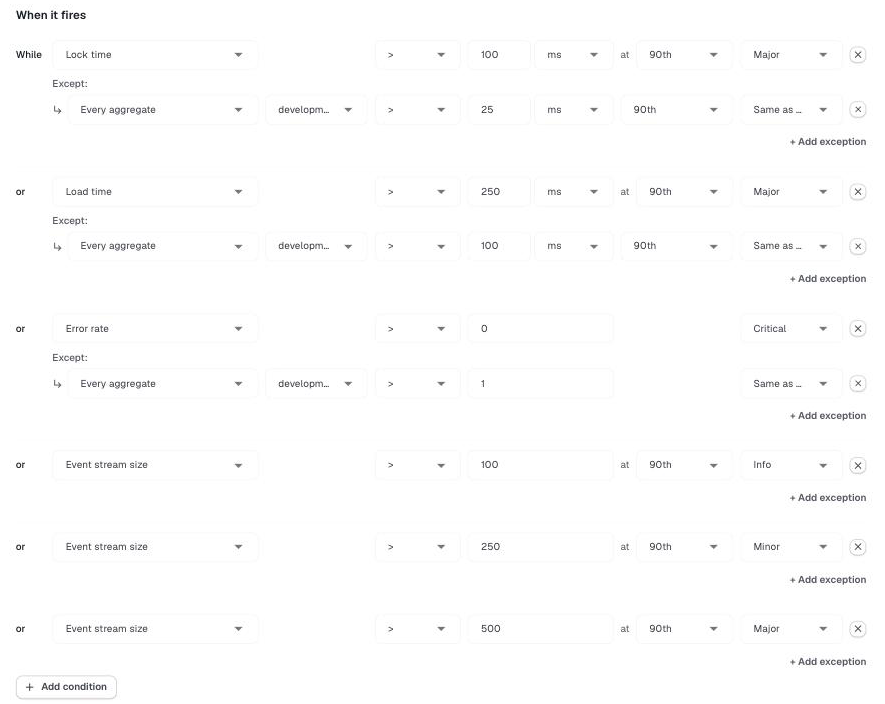
A rule has one or more conditions. The rule fires for a subject when any of its conditions holds for that subject.
Each condition consists of:
- Metric
-
What to measure, such as latency, error rate or free disk space. The metrics available depend on the scope; see Subjects and Metrics.
- Comparison and threshold
-
For example
> 250 ms. Durations can be entered in milliseconds, seconds, minutes, hours, or days. - Percentile
-
For timing metrics, which reading to judge: the minimum, the median, the ninetieth percentile, the ninety-fifth percentile, or the maximum. The ninetieth percentile is a good default: it ignores the occasional outlier but still catches a slow tail.
- Severity
-
Critical, Major, Minor or Info. The severity decides the priority of the inbox item and which integrations are notified.
Tiered thresholds
You can add several conditions on the same metric with different thresholds and severities. The default Bad performing aggregate rule, for example, reports an event stream size above 100 as Info, above 250 as Minor, and above 500 as Major. An alert always carries the highest severity of the conditions that hold, so it escalates and de-escalates as the value moves.
Exceptions
Under each condition, + Add exception lets you use a different threshold for specific subjects or environments, or stop alerting on them. See Exceptions.
Warm up and cool down
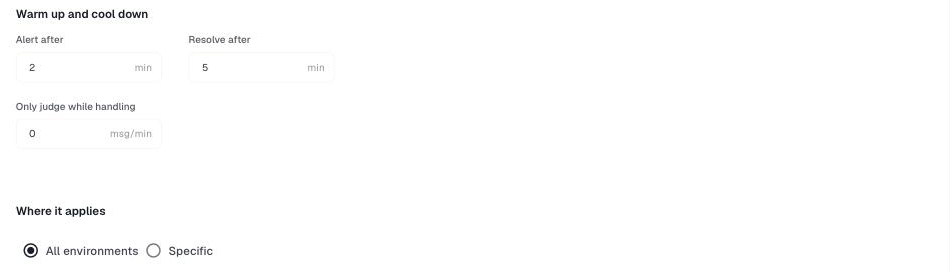
- Alert after
-
How many minutes a condition must hold before the alert triggers. Until then the alert is pending: you can see it on the rule and on the subject, but no inbox item opens and nobody is notified. This filters out short spikes.
- Resolve after
-
How many minutes the subject must stay healthy before the alert resolves. If the problem returns within that time, the alert simply continues. This prevents a flapping subject from opening and closing the same item over and over.
- Only judge while handling
-
For message-driven subjects such as handlers, aggregates, and entities, the minimum number of messages per minute before the rule judges a subject. A latency measured over two messages says little; set this to ignore quiet periods. Throughput conditions are always judged.
Warm up and cool down do not apply to workspace subjects such as access tokens and credits; those alerts trigger and resolve on the first check.
Where it applies
- All environments
-
The rule applies to every environment in the workspace, including environments you create later.
- Specific
-
The rule applies only to the environments you select.
Workspace subjects do not belong to an environment, so rules on them have no environment selection.
Managing rules
- Enabled
-
Turn a rule off without losing it. A disabled rule is not checked, and its firing alerts resolve.
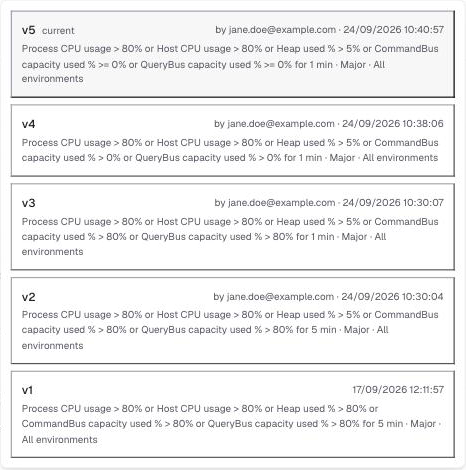
- Previous versions
-
Every saved change creates a new version. Previous versions lists them with who made the change and when. Select a version to load it into the editor, then save to restore it.
- Delete
-
Removes the rule. Inbox items it already opened are kept.
- Reset to default
-
Replaces all rules in the workspace with the default rules. Rules that already match a default are kept, missing defaults are added, and every other rule—including rules you created yourself—is removed. Inbox items are kept.
|
Changes take effect from the next check, about a minute after you save. Editing a rule does not resolve its firing alerts or close its inbox items; they are judged against the new thresholds from then on. Changing Split inbox by while alerts are firing regroups them: the editor asks you to confirm, firing subjects move to new items, and the old items are closed. |
Rule details
Besides Configuration, a rule has three tabs that show what it has been doing.
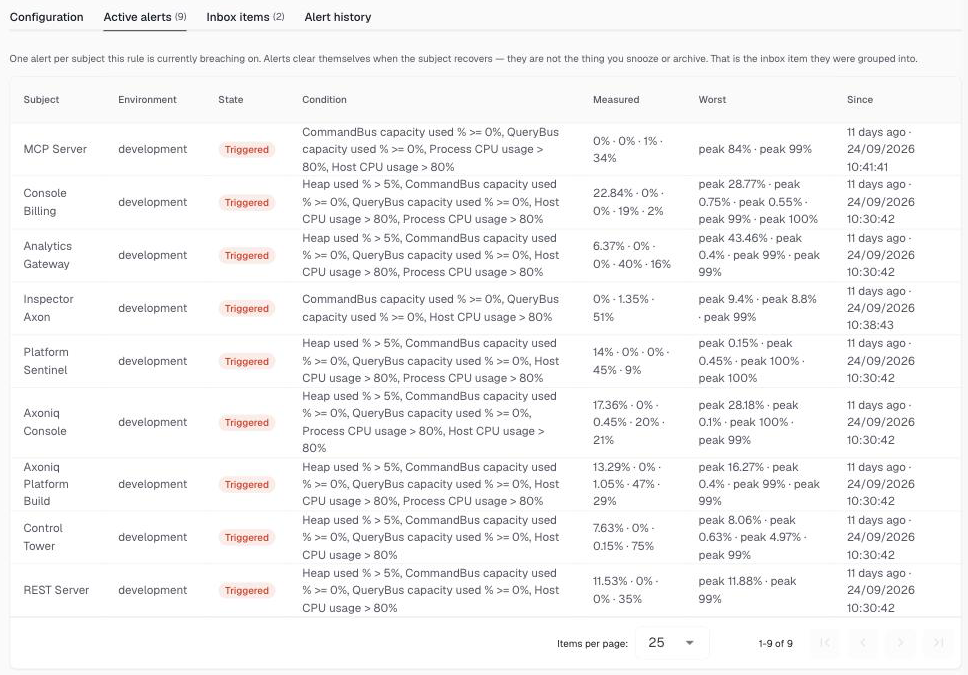
- Active alerts
-
One row per subject the rule is firing or pending on, with the measured and worst values.
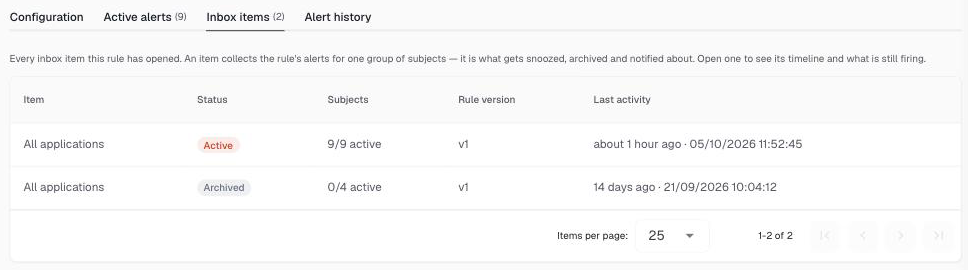
- Inbox items
-
Every inbox item the rule has opened, in any status, and the rule version it opened under.
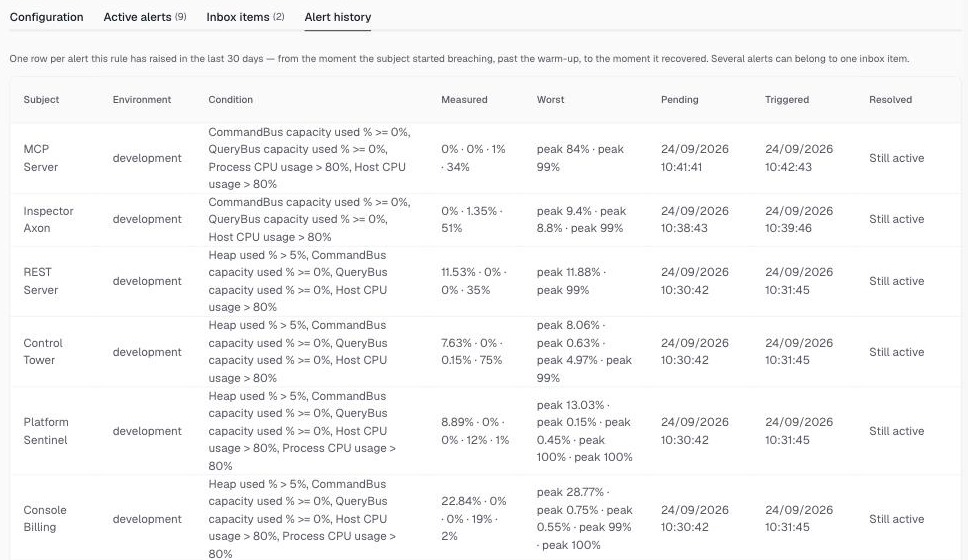
- Alert history
-
One row per alert in the last 30 days, from the moment the subject started breaching, through triggering, to recovery.