Access Tokens
Everything that connects to Axoniq Platform authenticates with an access token: your Axon Framework and Axoniq Framework applications, your Axon Server clusters, Insights, and Maven builds that download from the Axon Framework 4 LTS repository.
Access tokens belong to the workspace. One token can be used in several environments and by several kinds of clients, depending on the scopes and environments you give it.
Managing tokens
Open Workspace Settings from the workspace switcher and click Manage access tokens on the Access Tokens card. The Access tokens button on the Applications and Axon Server pages leads to the same place.
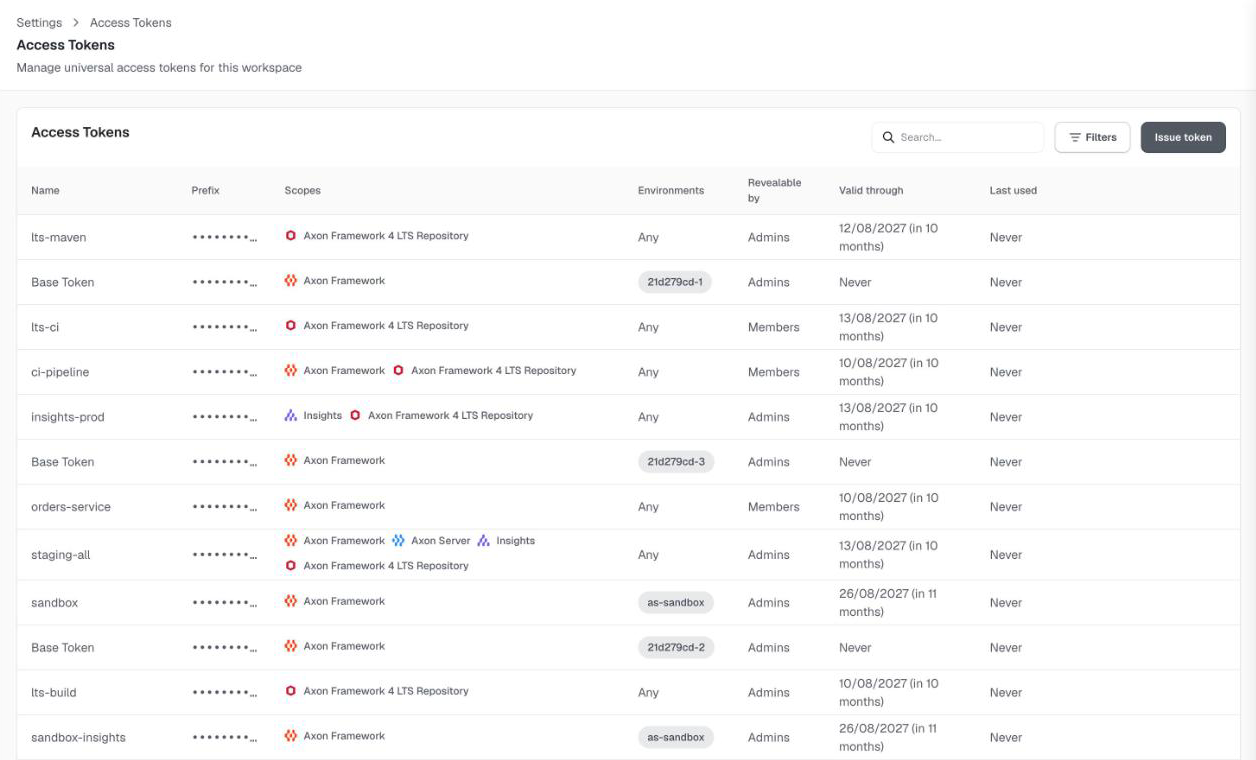
The list shows every token in the workspace with its scopes, environments, who can reveal it, until when it is valid, and when it was last used.
| Action | Owner | Admin | User | Viewer |
|---|---|---|---|---|
See the list of tokens |
✔️ |
✔️ |
✔️ |
✔️ |
Issue, rotate, rename and revoke tokens |
✔️ |
✔️ |
❌ |
❌ |
See a token’s access log and usage |
✔️ |
✔️ |
❌ |
❌ |
Reveal a token that is revealable by admins |
✔️ |
✔️ |
❌ |
❌ |
Reveal a token that is revealable by members |
✔️ |
✔️ |
✔️ |
❌ |
The default token
Every new workspace starts with a token named Default. It grants all connectors in all environments, never expires, and can be revealed by members, so you can connect your first application right away. Replace it with tokens that have an expiry and only the scopes you need once you move beyond trying things out.
Workspaces created before June 2026 have no Default token. Their existing tokens were converted instead: each kept its name and secret, grants the connector it was created for, is limited to its original environment, can be revealed by admins, and does not expire.
Issuing a token
Click Issue token and fill in:
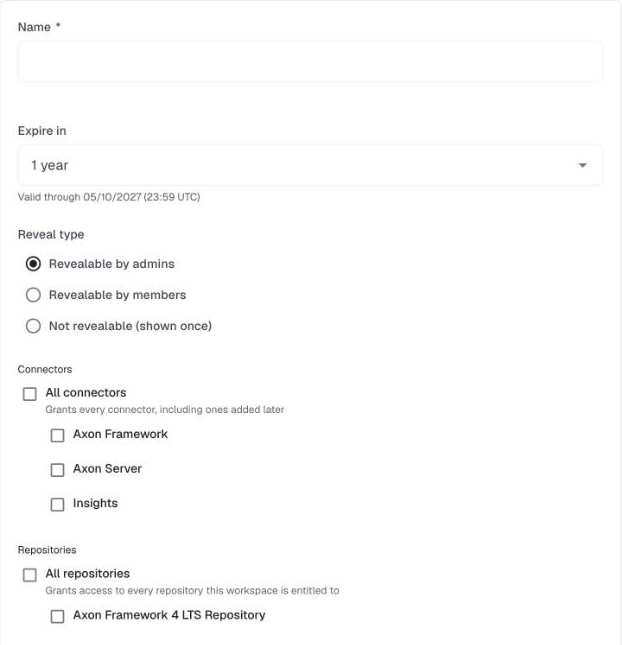
- Name
-
A name that tells you where the token is used, for example
orders-service production. - Expire in
-
1 month, 3 months, 6 months, 1 year (the default), a custom date, or Never. A token is valid through the end of its last day, in UTC. Tokens without an expiry are convenient but harder to keep track of; prefer an expiry and rotate the token before it ends.
- Reveal type
-
Who can see the secret again after you issued the token.
-
Revealable by admins: owners and admins (the default).
-
Revealable by members: also users, for example so developers can fill in the install guides themselves.
-
Not revealable: the secret is shown once, right after issuing, and is never stored. Copy it immediately.
-
- Connectors
-
Which clients the token is for: Axon Framework, Axon Server, Insights, or All connectors, which also covers connectors added in the future.
- Environments
-
The environments the connector scopes are valid in: All environments, including environments created later, or specific ones.
- Repositories
-
Shown when your workspace has access to the Axon Framework 4 LTS repository. Repository scopes always cover the whole workspace.
After issuing, the page shows the secret together with ready-to-use configuration snippets for each scope.
Only the name of a token can be changed afterwards. To change anything else, rotate the token.
Using a token
Clients send the token as <username>:<secret>:
-
For connectors, the username is the ID of the environment to connect to. The environment must be one of the token’s environments.
-
For repositories, the username is the ID of the workspace.
A token that covers several environments uses the same secret everywhere; only the environment ID differs. The token’s detail page has an environment selection that fills in the right ID.
| Client | Scope | Configuration |
|---|---|---|
Axoniq Framework 5 (Spring Boot) |
Axon Framework |
|
Axon Framework 4 (Spring Boot) |
Axon Framework |
|
Axon Server |
Axon Server |
|
Insights |
Insights |
|
Maven |
Axon Framework 4 LTS Repository |
Username |
See Axon Framework Client and Axon Server for the complete setup.
In the install guides
The install guides in the Resource Center have a token picker, Which Access token to use for Axoniq Platform. It lists the tokens you are allowed to reveal that grant the right scope for the current environment and have not expired. Picking one fills in the configuration with its real secret. Every pick is recorded in the token’s access log.
If no suitable token is available, the guide uses placeholders. Admins can issue a token from there; other members are asked to contact an admin.
Rotating, renaming, and revoking
- Rotate
-
Issues a new token with the same settings, which you can adjust before saving. The old token keeps working until you revoke it, so you can update your clients first.
- Rename
-
Changes the name only.
- Revoke
-
Deletes the token. Axon Framework applications and Axon Server clusters connected with it are disconnected immediately, and Insights and Maven reject it from the next request. This cannot be undone.
When a token expires, the same happens as when it is revoked.
Axoniq Platform warns you before that happens: the default Access token expiring alert rule notifies you 30 days and 15 days before a token expires, and when it has expired.
Access log and usage
The detail page of a token shows owners and admins how the token is used:
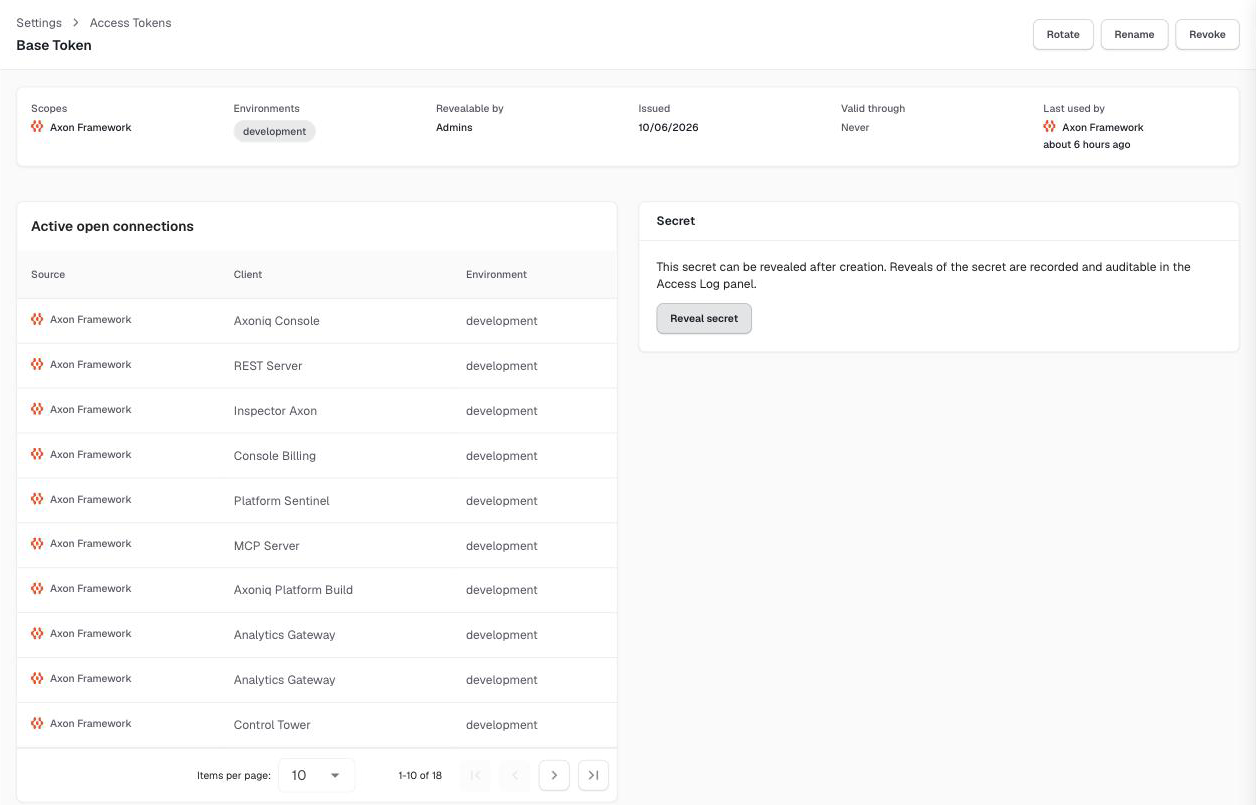
- Active open connections
-
The applications and Axon Server clusters connected with this token right now.
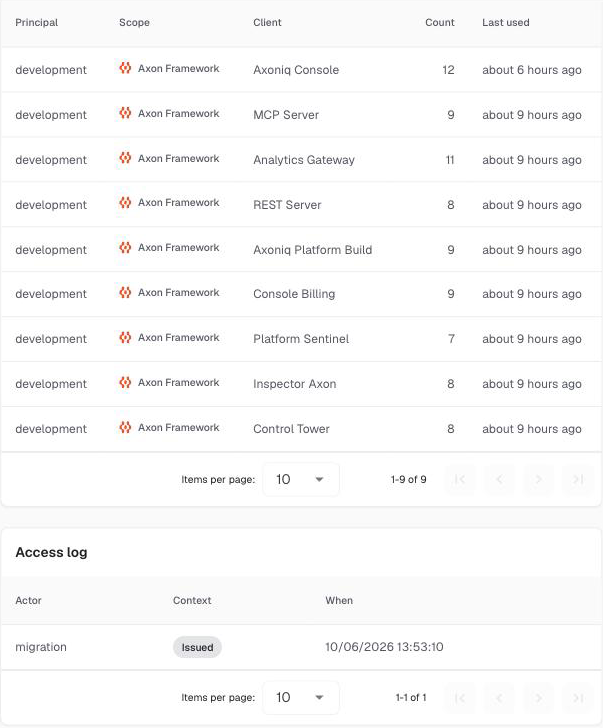
- Last authentication requests
-
Who authenticated with the token in the last 24 hours, per environment, scope, and client. Use this to find out what still uses a token before you revoke it.
- Access log
-
Who revealed the secret and how: when it was issued, revealed manually, picked in an install guide, or embedded in generated code or a Quickstart download.
The secret itself is in the Secret panel of the detail page, behind Reveal secret, for those allowed to see it.
|
A client that is refused gets no reason, to avoid revealing which tokens exist. If an application does not connect, check on the token’s detail page that the token has not expired, grants the right connector, and covers the environment in the configuration. |